
Par initdesk TeamTutorial
Utiliser initdesk comme app Chrome
Épinglez initdesk sur le bureau dans Chrome et ouvrez le support dans sa propre fenêtre : étapes d’installation, ce qui change au quotidien, et comment ça s’accorde avec les notifications push.
Si le support vit dans un onglet de navigateur, il concurrence tout le reste que vous avez ouvert : docs, Slack, facturation, le produit lui-même. Installer initdesk comme app Chrome vous donne une fenêtre dédiée, une icône dans le dock ou la barre des tâches, et un flux plus proche d’une app native sans téléchargement séparé.
initdesk est livré comme Progressive Web App (PWA). Chrome peut l’installer depuis app.initdesk.com en environ une minute. Vous vous connectez de la même façon ; vous arrêtez seulement de chercher le bon onglet.
Ce que vous gagnez à l’installation
Une app Chrome installée, c’est encore initdesk : la même boîte de réception, les mêmes outils du Centre d’aide, les mêmes paramètres. Ce qui change, c’est comment vous l’ouvrez :
- Fenêtre autonome : plus de rangée d’onglets sans rapport au-dessus de votre file.
- Icône d’app : lancez depuis le dock (macOS), la barre des tâches (Windows), ou le lanceur d’apps de Chrome.
- Retours plus rapides : un clic au lieu de « c’était quel onglet ? »
- Notifications push : sur les navigateurs bureau supportés et Android, les alertes marchent mieux quand initdesk est installé (voir préférences de notification).
Vous n’installez pas un autre produit ni un client hors ligne limité. Voyez ça comme épingler l’app web complète sur le bureau dans une coque focalisée.
Pour la note de livraison d’origine, voir App installable (PWA) sur les Mises à jour produit.
Avant de commencer
- Utilisez Google Chrome sur bureau (macOS, Windows ou Linux). Les navigateurs Chromium comme Microsoft Edge suivent un flux similaire ; Safari ne prend pas en charge la même installation PWA en un clic sur bureau.
- Connectez-vous sur app.initdesk.com avec votre compte initdesk. Si vous êtes nouveau, partez de signup : l’étape d’installation marche de la même façon après la première connexion.
- Restez sur le hostname de l’app (
app.initdesk.com), pas le site marketing (www.initdesk.com).
Installer sur Chrome bureau (pas à pas)
Option A : Barre d’adresse (le plus rapide)
- Ouvrez https://app.initdesk.com dans Chrome et connectez-vous.
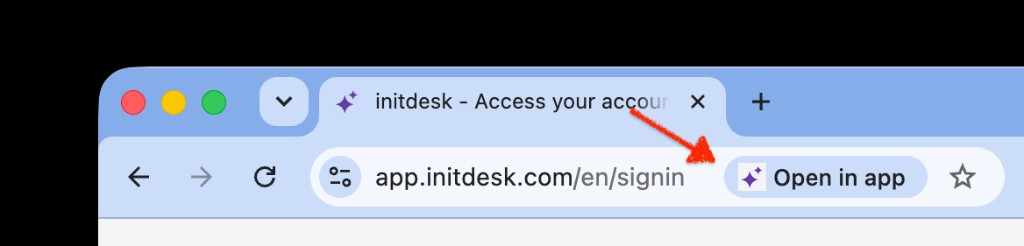
- Regardez le côté droit de la barre d’adresse pour le contrôle d’installation. Chrome peut l’étiqueter Installer, montrer une icône moniteur-avec-flèche, ou dire Ouvrir dans l’application une fois l’app déjà installée.
- Cliquez et confirmez Installer dans la boîte de dialogue.
- Chrome ouvre initdesk dans sa propre fenêtre et l’ajoute à vos apps.
C’est toute l’installation. La prochaine fois, lancez initdesk depuis le dossier Applications, le dock, ou
chrome://apps au lieu d’ouvrir un nouvel onglet.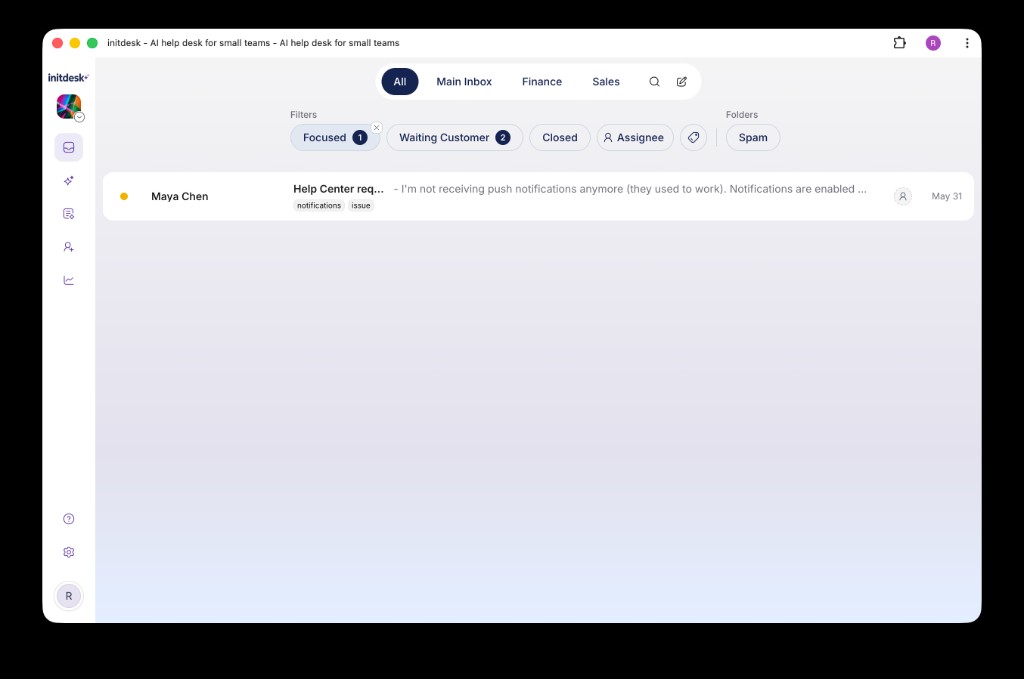
Option B : Menu Chrome
Si vous ne voyez pas l’icône de la barre d’adresse :
- Ouvrez app.initdesk.com dans Chrome.
- Cliquez sur le menu trois points (en haut à droite).
- Choisissez Enregistrer et partager → Installer la page en tant qu’application (le libellé peut varier légèrement selon la version de Chrome).
- Nommez l’app initdesk si on vous le demande, puis confirmez.
Vous arrivez dans la même fenêtre autonome que l’option A.
Après l’installation : intégrez-le à votre routine
Quelques petites habitudes transforment l’installation en vrai gain de flux :
- Épinglez l’icône : sur macOS, gardez initdesk dans le Dock ; sur Windows, épinglez-le à la barre des tâches pour que le support soit à un clic.
- Fermez l’onglet navigateur : vous n’avez plus besoin de
app.initdesk.comouvert dans un onglet une fois la fenêtre d’app installée. Utilisez l’entrée d’app pour éviter les sessions en double. - Activez les notifications que vous lirez vraiment : chaque collègue peut choisir e-mail et/ou push sous Paramètres > Notifications. Les owners d’organisation activent d’abord le push au niveau org ; le détail est dans le guide notifications push web et e-mail d’initdesk. Le push sur bureau et Android marche sur les navigateurs supportés quand initdesk est installé ou ajouté à l’écran d’accueil.
- Faites du triage clavier dans une fenêtre propre : étiquettes, actions en lot et le filtre En attente du client sont plus faciles à scanner quand Gmail et dix autres onglets ne sont pas à un clic.
Mobile : Android et iOS
L’histoire d’installation d’initdesk est la plus forte sur Chrome bureau, mais le mobile compte si vous voulez des alertes en déplacement.
| Plateforme | Approche d’installation | Notes |
|---|---|---|
| Android (Chrome) | Ouvrez app.initdesk.com → menu → Ajouter à l’écran d’accueil ou Installer l’application | Se comporte comme une app installée ; les notifications push marchent sur les navigateurs supportés. |
| iOS (Safari) | Ouvrez app.initdesk.com → Partager → Sur l’écran d’accueil | Requis avant que le push mobile marche de façon fiable ; iOS traite ça comme un raccourci d’écran d’accueil plutôt qu’une PWA style Chrome. |
Pour la configuration des notifications mobiles, ajoutez d’abord l’app à l’écran d’accueil, puis configurez Paramètres > Notifications dans initdesk.
Avantages pour les petites équipes de support
Moins de changement de contexte. Fondateurs et opérateurs solo basculent souvent entre produit, boîte et docs. Une fenêtre d’app dédiée garde la file visible sans la perdre derrière le reste du travail.
Propriété plus claire du « temps support ». Ouvrir l’app initdesk peut être le signal que vous êtes sur les tickets, pas en train de jeter un œil à l’e-mail dans un onglet que vous oublierez de fermer.
Des notifications alignées sur votre façon de travailler. Avec les notifications push et les préférences de notification par utilisateur, les collègues qui vivent dans l’app installée peuvent recevoir des alertes de nouveaux tickets sans laisser un onglet ouvert toute la journée.
Pas de déploiement IT. Rien à packager, approuver ou pousser via MDM. Si quelqu’un a Chrome et une connexion initdesk, il peut s’installer lui-même, utile pour prestataires ou support à temps partiel.
Même modèle utilisateurs illimités. initdesk ne facture pas par siège. Installer l’app sur la machine de chaque collègue ne change pas votre facture ; vous payez encore au volume de tickets, pas au headcount. Voir tarifs si vous comparez des outils.
Dépannage
Je ne vois pas de bouton Installer.
- Confirmez que vous êtes sur https://app.initdesk.com, connecté, dans Chrome (pas Safari sur bureau).
- Essayez un hard refresh, ou le chemin du menu : Enregistrer et partager → Installer la page en tant qu’application.
- Les politiques d’entreprise bloquent parfois les installations d’apps ; demandez à l’IT si les options d’installation sont désactivées.
J’ai installé deux fois depuis des navigateurs différents.
- Chrome et Edge gardent chacun leur propre copie d’une PWA installée. Choisissez un navigateur pour initdesk afin d’éviter les sessions scindées et la confusion sur les notifications.
Je veux récupérer la barre d’adresse.
- Dans Chrome, ouvrez les paramètres de l’app initdesk (clic droit sur l’icône → Infos sur l’application ou paramètres du site) et changez le comportement de lancement pour ouvrir dans un onglet navigateur au lieu d’une fenêtre, ou désinstallez l’app et utilisez un favori normal.
Les notifications n’apparaissent pas.
- Admin d’org : activez les notifications sous Paramètres > Général.
- Utilisateur : activez le push sous Paramètres > Notifications et autorisez la permission navigateur quand on vous le demande.
- Sur mobile, ajoutez d’abord initdesk à l’écran d’accueil, puis réessayez.
Je ne vois que le site marketing.
- L’app installable est sur app.initdesk.com.
www.initdesk.comest le site public (blog, tarifs, mises à jour), pas la boîte de réception.
Désinstaller ou réinstaller
Pour retirer l’app Chrome :
- Ouvrez
chrome://appsdans Chrome. - Clic droit sur initdesk → Supprimer de Chrome (le libellé peut varier).
Votre compte et vos données initdesk restent inchangés. Reconnectez-vous quand vous voulez sur app.initdesk.com pour réinstaller.
Récap rapide
- Ouvrez app.initdesk.com dans Chrome et connectez-vous.
- Cliquez sur Installer dans la barre d’adresse (ou utilisez Enregistrer et partager → Installer la page en tant qu’application).
- Épinglez l’app au dock ou à la barre des tâches.
- Activez les paramètres de notification qui collent à votre rôle.
Vous obtenez une fenêtre de support dédiée en moins d’une minute : pas de nouvelle connexion, pas de frais par siège, même boîte partagée et brouillons IA que vous utilisez déjà.
Questions ou astuces de config ? Partagez-les avec @initdeskhq sur X. Pour les bases de la boîte avant d’installer, commencez par le guide de démarrage rapide dans le Centre d’aide.